How can the user be able to Switch Xero
Overview
Switch Xero is an 8-step wizard in Prism Finance that moves an account from its current Xero organisation to a new one. It lets you review everything still outstanding, disconnects the old organisation, cleans up remaining balances, and re-enables sync, so the books start clean on the new organisation.
|
Steps
|
Phase
|
Nature
|
What happens
|
|
1–3
|
Review & report
|
Read-only
|
Check outstanding invoices, credits and overpayments across three tabs, then view the debtor report. Nothing changes; you can close at any time.
|
|
4
|
Disconnect Xero
|
Irreversible
|
Confirm to disconnect the old organisation and pause sync. Everything from here runs automatically and cannot be undone.
|
|
5–7
|
Settle & clean up
|
Automatic
|
Zero out remaining invoices, credits and overpayments, remove unused chart-of-accounts entries, and refresh payment statuses.
|
|
8
|
Re-enable sync
|
Automatic
|
Sync is switched back on. You are then directed to the separate flow to connect the new Xero organisation.
|
Before you start
Make sure the following are in place before you open the wizard:
- The account is currently connected to a Xero organisation. The connected organisation name shows on the Xero button at the top right of Finance > Dashboard.
- Any recent changes in Xero have been made, so you can pull the latest data with Refresh in step 2.
- You have the new Xero organisation's details ready. You will connect it after the wizard finishes.
- You are certain you want to switch. From step 4 onwards the process cannot be undone, and the action is logged against the account.
Step-by-step guide
Open the wizard
- Go to Finance > Dashboard.
- Click the Xero organisation button at the top right (it shows the connected organisation, e.g. Yardpay_test).
- Choose Switch Xero from the menu.
Step 1 of 8 – Introduction
The first screen summarises the four phases of the switch. Read it, then click Next.
Step 2 of 8 – Review outstanding items (read-only)
These items still carry a balance on the current Xero organisation and will be settled automatically after you disconnect. Check each tab:
|
Tab
|
Columns shown
|
|
Open / partially-paid invoices
|
Owner account, Reference, Due date, Amount, Remaining
|
|
Remaining credit
|
Owner account, Reference (e.g. CN-0001), Due date, Amount, Remaining
|
|
Remaining overpayment
|
Owner account, Reference, Amount, Remaining, Date
|
- Click Refresh if changes were just made in Xero.
- Click Export CSV to download the data (e.g. XeroChangeoverInvoices_25092026.csv). Keep this file: you need it to set up opening balances in the new Xero organisation.
- Click Next.
Step 3 of 8 – Debtor Report (read-only)
A summary of outstanding balances per owner, aged by how overdue they are: Current, 1 Month, 2 Months, 3 Months, Older, Total Due, Credit, Balance and Last Payment, with a TOTAL row. The totals match the Review tabs.
- Click Export CSV to keep a copy of the report.
- Click Next.
Step 4 of 8 – Disconnect confirm (irreversible)
A red warning states that disconnecting cannot be undone and is logged against the account. Confirmation will disconnect the current Xero organisation, settle all outstanding invoices, credits and overpayments, and clean up unused chart of accounts.
- Type DISCONNECT in the box, in capitals with no spaces before or after.
- Click Confirm Disconnect. The button stays disabled until the text matches exactly.
Step 5 of 8 – Zero out
Prism creates settlement and refund records so every reviewed invoice, credit and overpayment reaches a zero balance. Overpayments are converted to payments and refunded; credits are settled against a cash-refund record. No historical data is pushed to the new organisation.
- Review the step, then click Process.
Step 6 of 8 – Clean up chart of accounts
Prism lists chart-of-accounts entries no longer referenced by any invoice, expense, supplier or config (e.g. 804 Wages Payable – Payroll, Current Liability). All are selected by default.
- Wait for the list to load.
- Deselect any account you want to keep.
- Click Process to remove the selected accounts, or Skip to keep them all.
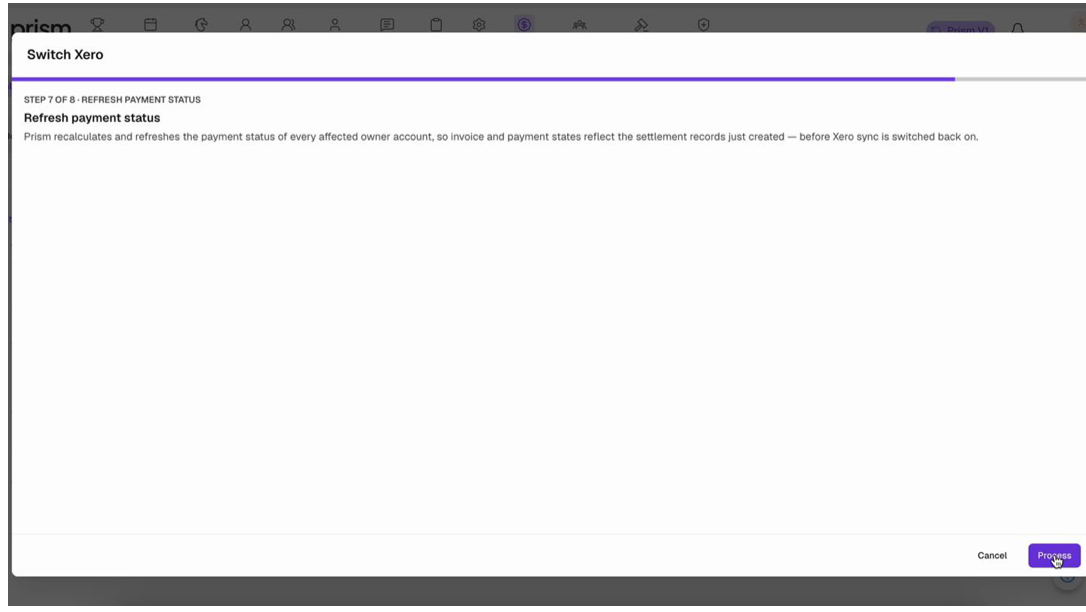
Step 7 of 8 – Refresh payment status
Prism recalculates the payment status of every affected owner account so invoice and payment states match the new settlement records.
- Click Process.
Step 8 of 8 – Re-enable sync
The final step switches Xero sync back on.
- Click Process.
- On the Changeover complete screen, click Done.
After switching
When the wizard finishes, all outstanding balances are settled, the old Xero organisation is disconnected, and sync is back on. The books are clean and ready for the new organisation.
- Go back to Finance > Dashboard.
- Use the Xero menu at the top right to connect the new Xero organisation. This is a separate flow from the Switch Xero wizard.
- Opening invoices sync from the configured cutover date.
- Use the CSV files exported in steps 2 and 3 to set up opening balances in the new organisation.
To verify the switch, check that the Xero button shows the new organisation name and that the dashboard balances reflect the new organisation.
Tips and troubleshooting
- Export before you disconnect. The CSV exports in steps 2 and 3 are the only easy record of balances before they are zeroed out.
- Cancel is safe only in steps 1–3. Once you click Confirm Disconnect in step 4, everything is permanent. Steps 5–8 have no Previous button.
- Confirm Disconnect stays greyed out. Check the text is exactly DISCONNECT in capitals, with no leading or trailing spaces. Lowercase disconnect does not enable the button.
- Data looks out of date in step 2. Click Refresh to pull the latest invoices, credits and overpayments from Xero.
- Keeping a chart-of-accounts entry. In step 6, untick the account before clicking Process, or click Skip to keep all of them.
- Dashboard still shows the old organisation. In the recording, the dashboard still showed Yardpay_test and the old balances right after Done. Open question: confirm whether a page refresh is needed or whether this is a defect.