How to invoice stallion service fees
There are two methods to invoice mare owners the service fee for each stallion booking.
- Create Service Fee transaction upon milestone completion
- Manually create Service Fee transaction
These Service Fee transactions can then be automatically included in your end of month statement run, or you can invoice immediately using Prism’s Single Invoice feature.
CREATE SERVICE FEE TRANSACTION UPON MILESTONE COMPLETION
If you setup a Service Fee Booking Rule, then upon completing the relevant pregnancy milestone (Scan 1, Scan 2, Scan 3, Foal Due), then upon completing the relevant pregnancy milestone (Scan 1, Scan 2, Scan 3, Foal Due), the service fee transaction will be automatically created and appear in Finance > Transactions ready for your end of month statement run.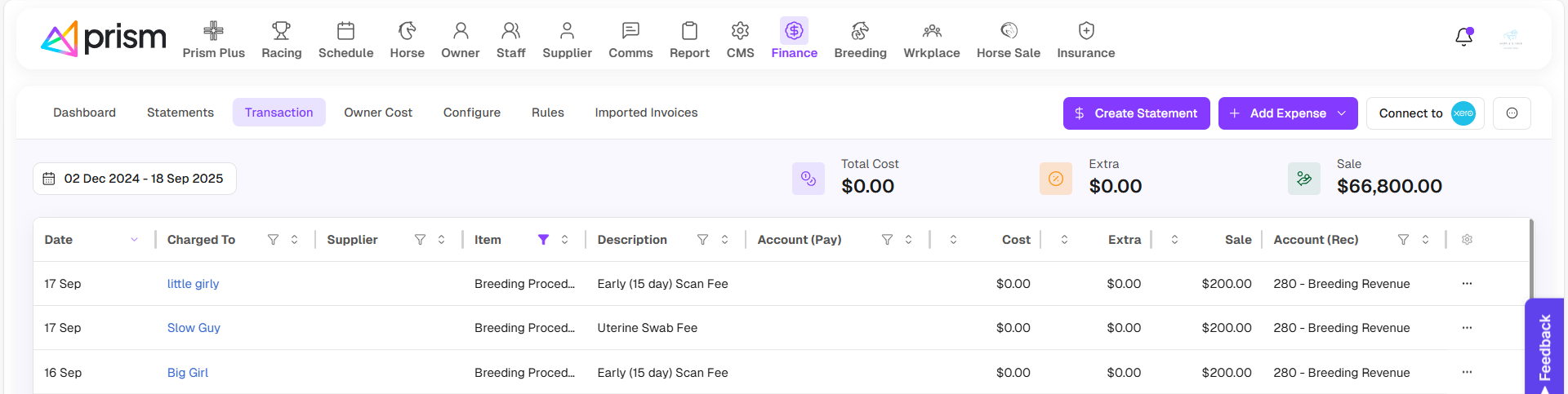
MANUALLY CREATE SERVICE FEE TRANSACTION
Rather than configuring Stallion service fees to be triggered upon a Mare service or a pregnancy scan milestone, you may choose to manually add a service fee as a transaction expense and included in month-end invoicing.
You must have the Stallion in your portal, and the Booking Status must be “Confirmed”.
Go to Breeding > Dashboard tab and check the line items: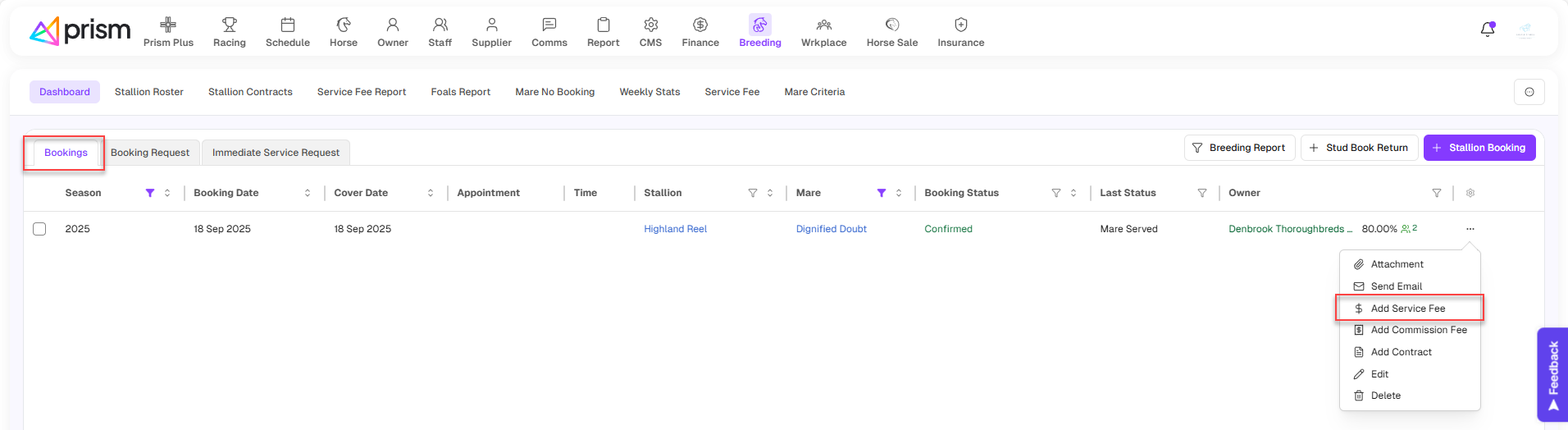
- If $ icon is green: the service fee transaction for that cover was created. You can check it in the Finance section - Transaction tab.
- If $ icon is light grey: you don’t have the Stallion in your portal, just the mare so you are not allowed to issue service fee invoices.
- If $ icon is darker grey: the service fee transaction for that cover has not been created (because it hasn’t reached the trigger as defined or because you skipped creating service fee when asked). You can add service fee transactions manually.
To add this transaction manually:
1. Click on the dark grey $ sign, Add Service Fee dialog opens.
2. Review all the fields which are pre-filled to ensure they are correct.
3. Once approved, click Save to close the form. The new service fee transaction is visible in the Finance - Transaction tab. The $ sign of the record in the Dashboard tab turns green.
4. Go to the Finance section - Transaction tab to check the service fee which has been created but not invoiced to Mare owners yet. This invoicing will occur during month-end Statement processing.
ISSUE INVOICE TO MARE OWNERS, IMMEDIATELY
Rather than waiting for month-end Statement processing, you may choose to invoice service fees to the mare’s owners immediately.
1. In the Finance section - Statements tab, click on “Add Invoice” and select the “Single Invoice” option.
2. The Add Single Invoice dialog shows. Under Charge To, select “Horses”, then select the mare you wish to invoice. Selecting the mare will create an invoice for each owner of the mare, proportionate to their share interest.
3. Click on the Select Expense button
4. Select the service fee transaction(s) from the list
5. Click Add. The dialog closes and gets back to Add Single Invoice dialog.
6. Review all fields, add more expenses or credits if any. Once done, click Save to finish.
7. The confirmation shows asking you to sync to Xero. You can sync now or skip it for later.
8. The Single Invoice is created and sent to the owner(s).
9. You can check the single invoice in Breeding - Service Fee Report screen.
10. The invoice is shown in Finance - Statements as well.